A koko is tied to a real place
You leave it where you are, and it stays connected to that place.
This guide is for anyone using Koko for the first time or coming back to it later. It covers the core flow: set up permissions, leave a koko where you are, and understand how messages appear when someone arrives.
Use this checklist if you want the shortest path to using Koko.
Koko is built around messages that belong to places, not messages sent from anywhere.
You leave it where you are, and it stays connected to that place.
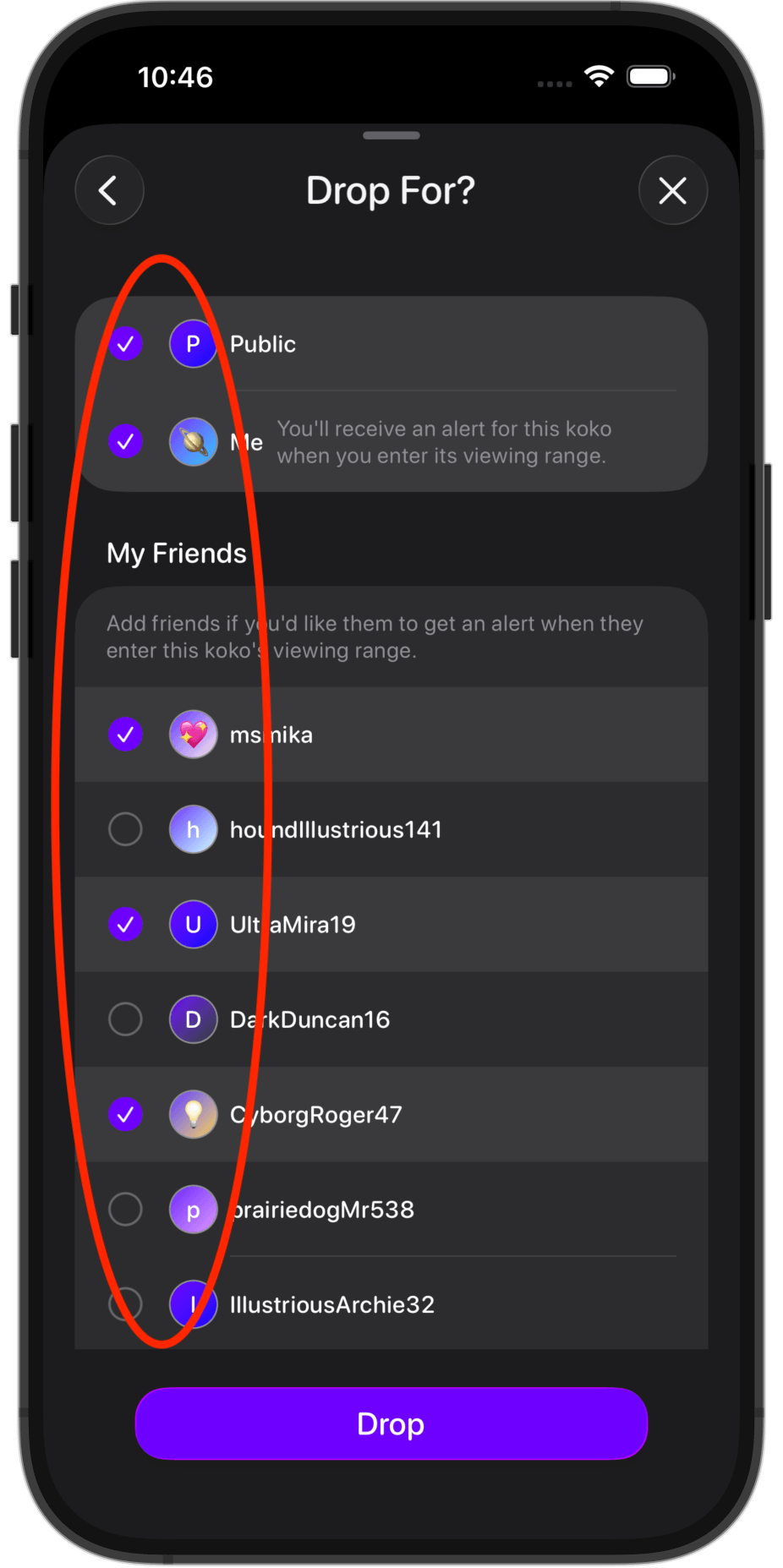
A koko can be for yourself, for friends, or for anyone nearby.
The message appears when the right person gets close enough to the place you chose.
Koko is designed around being there, not remote dropping from somewhere else.
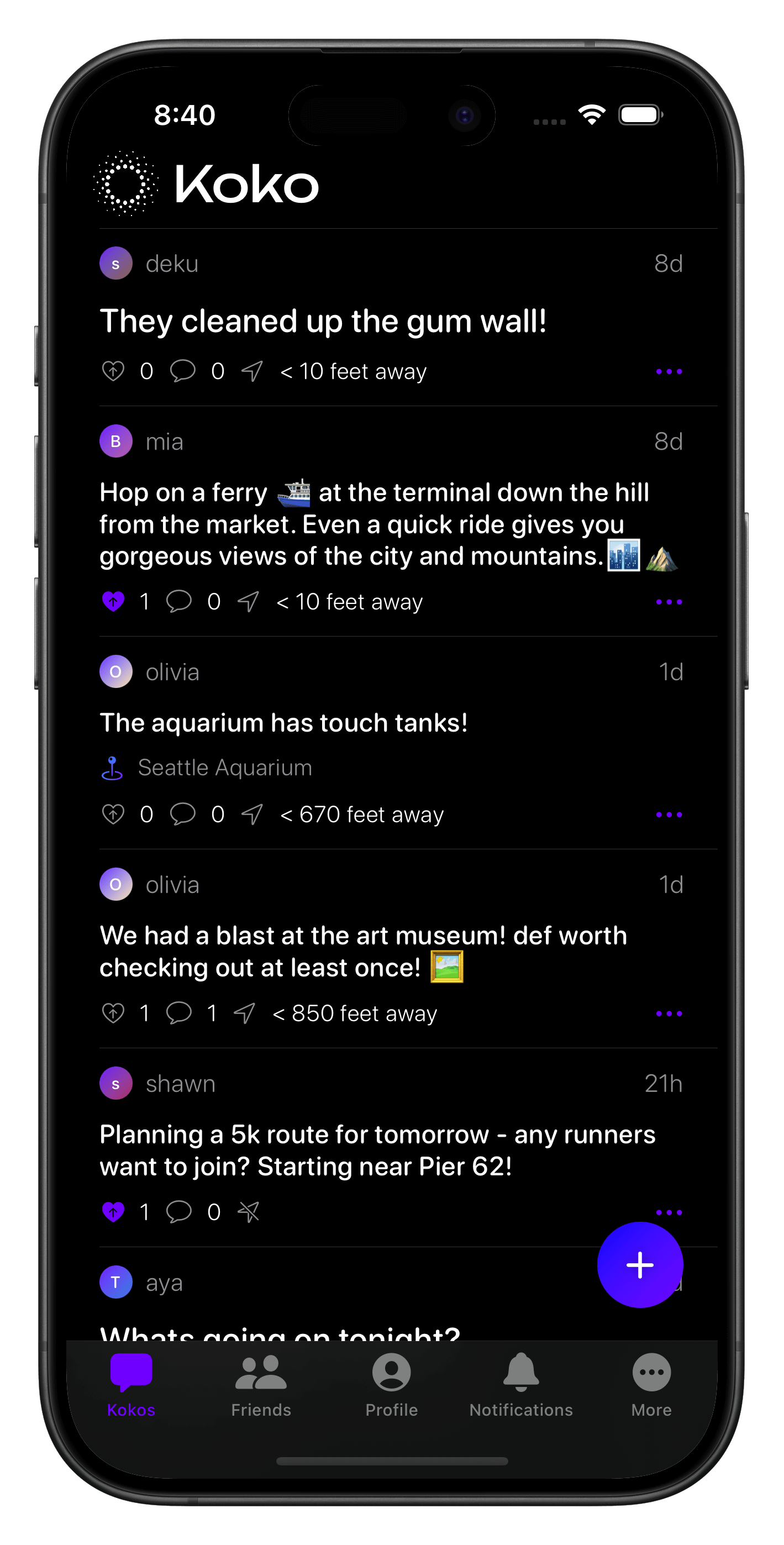
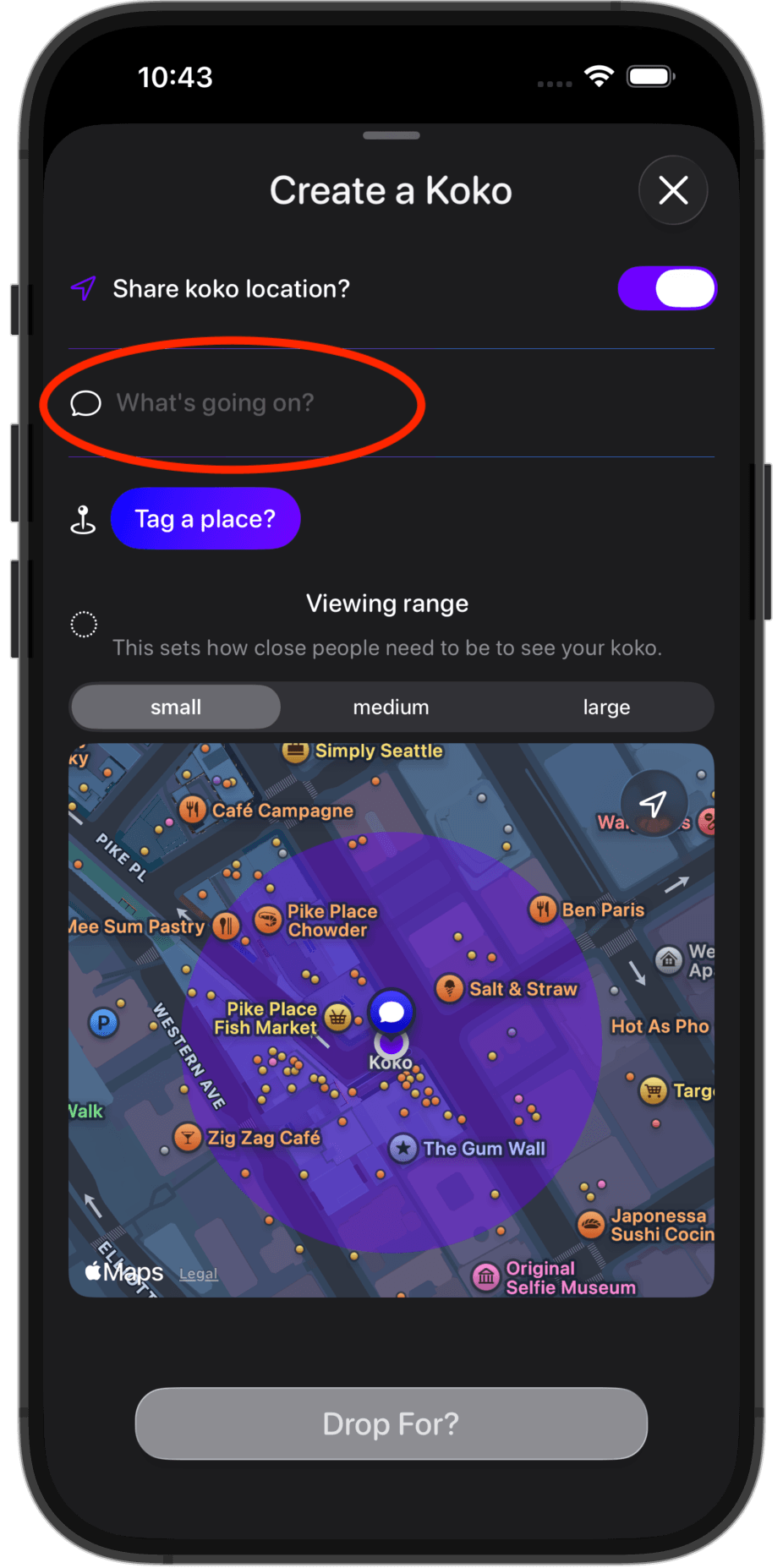
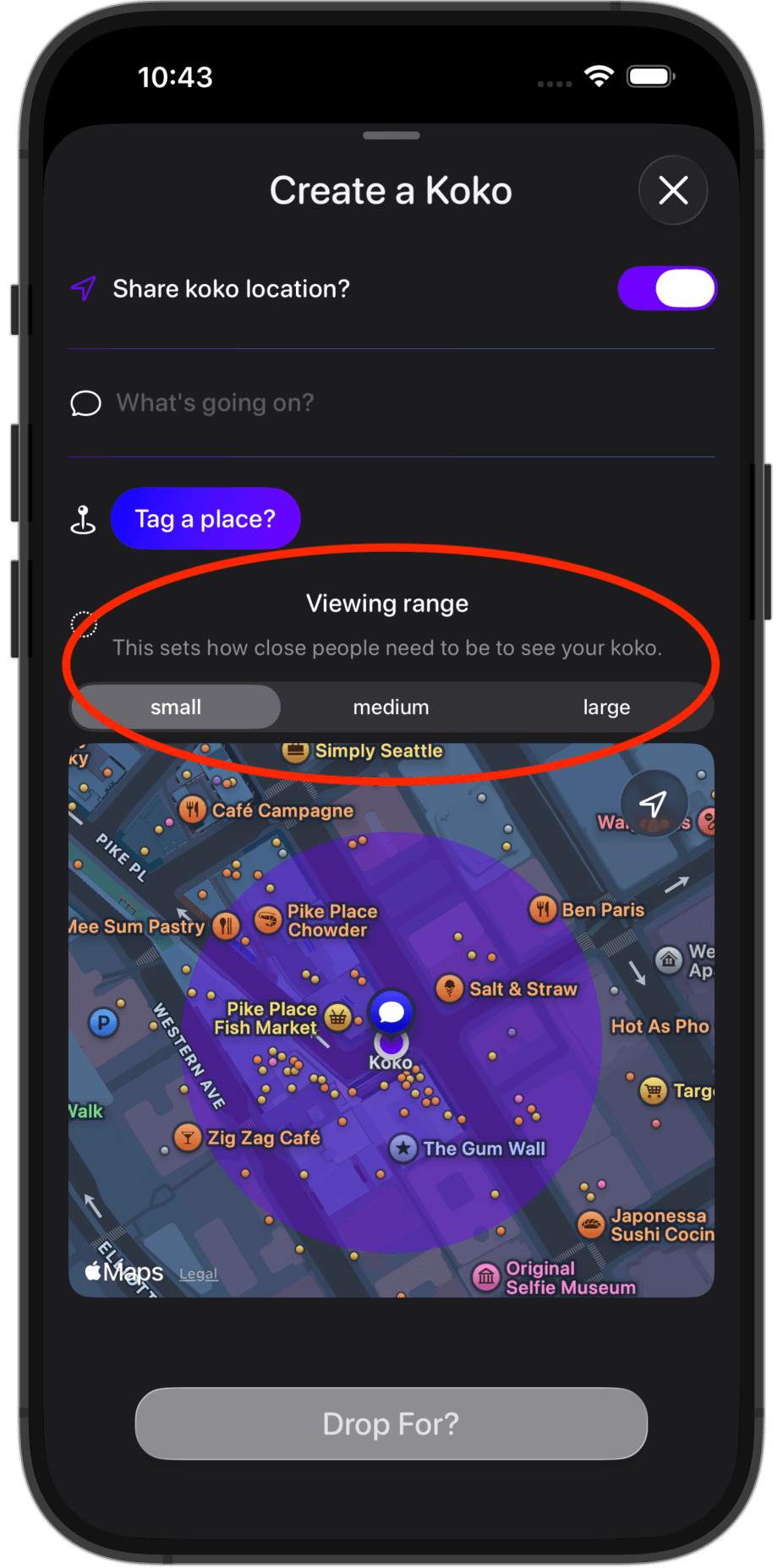
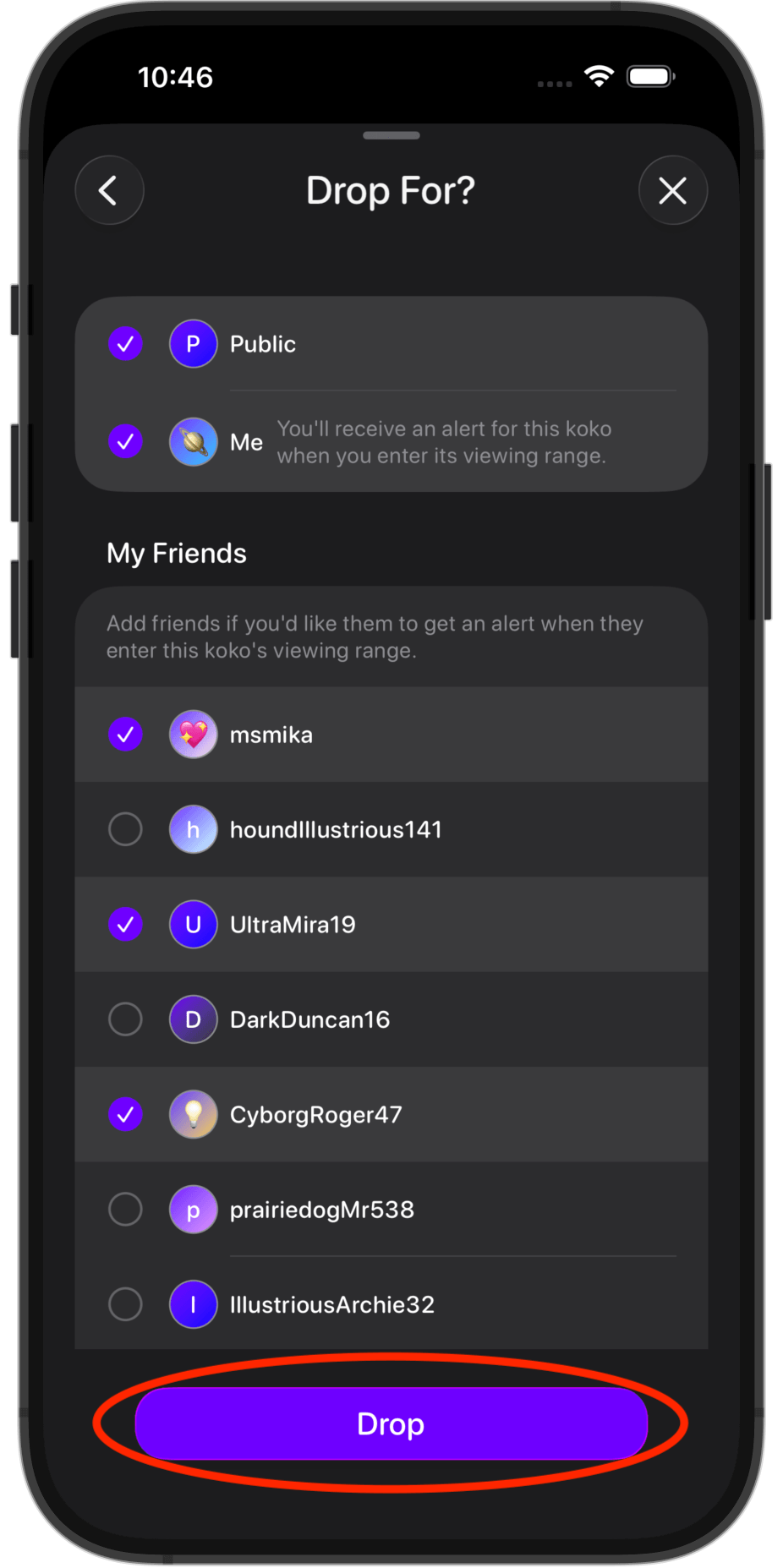
Leaving a koko is easy: be there, write it, set how close someone should be before it appears, choose who it is for and drop it.
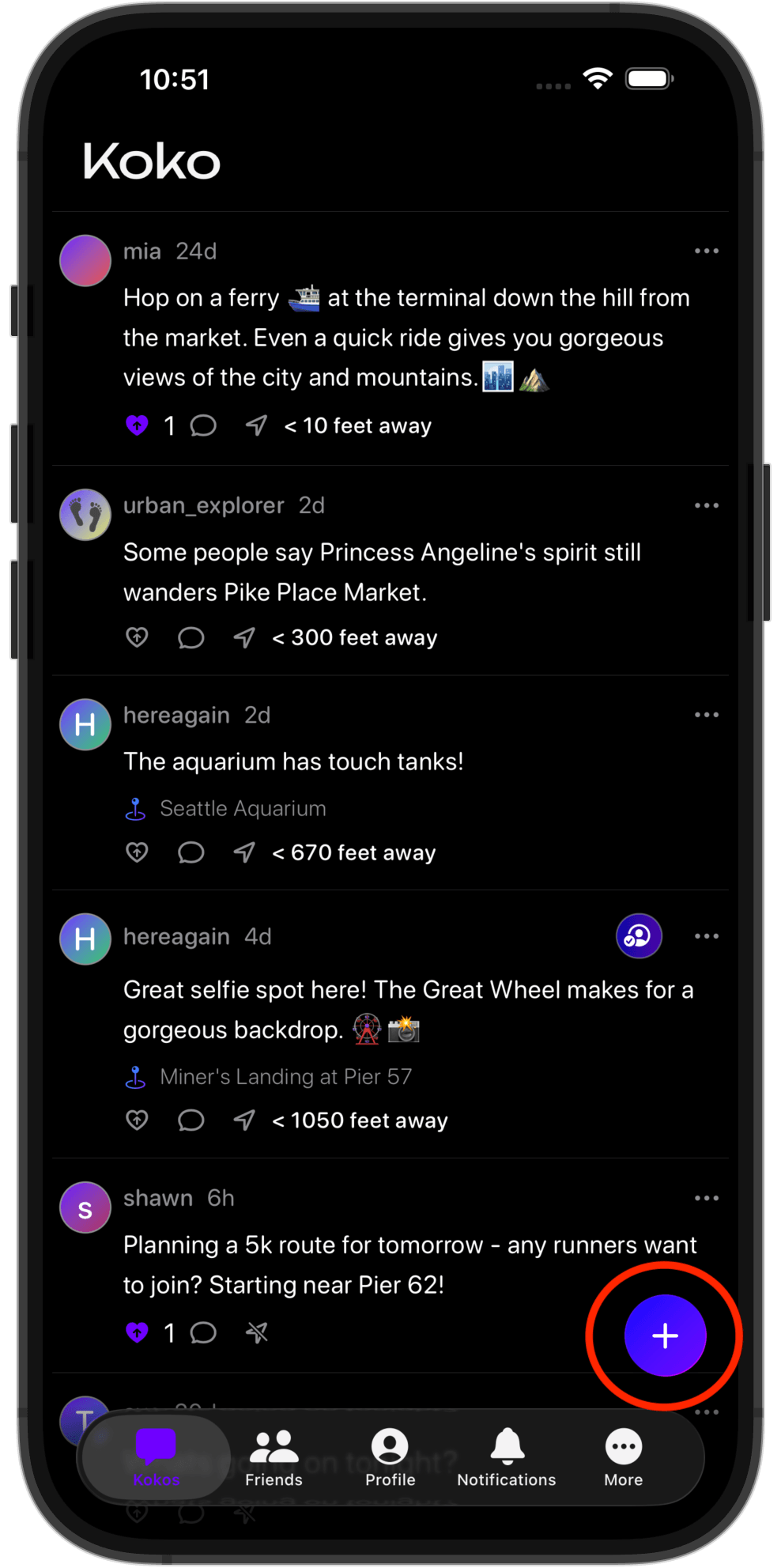
Use this when you want to leave something for your future self at a place you expect to return to.
Use this when you want the message to wait for specific people instead of everyone nearby.
Use this when you want to leave something public, helpful, or discoverable at a place.
Kokos are meant to show up when someone reaches the place and enters the viewing range that was chosen.
When you get close enough to a koko that is meant for you or available nearby, it will appears when you open the app.
If notifications are enabled, Koko can notify you upon arrival when there is a koko waiting for you, even if the app is not currently open.
If a koko has not appeared yet, it usually means you are not close enough yet, the intended audience does not include you, or notifications are disabled and you have not opened the app at the right place.
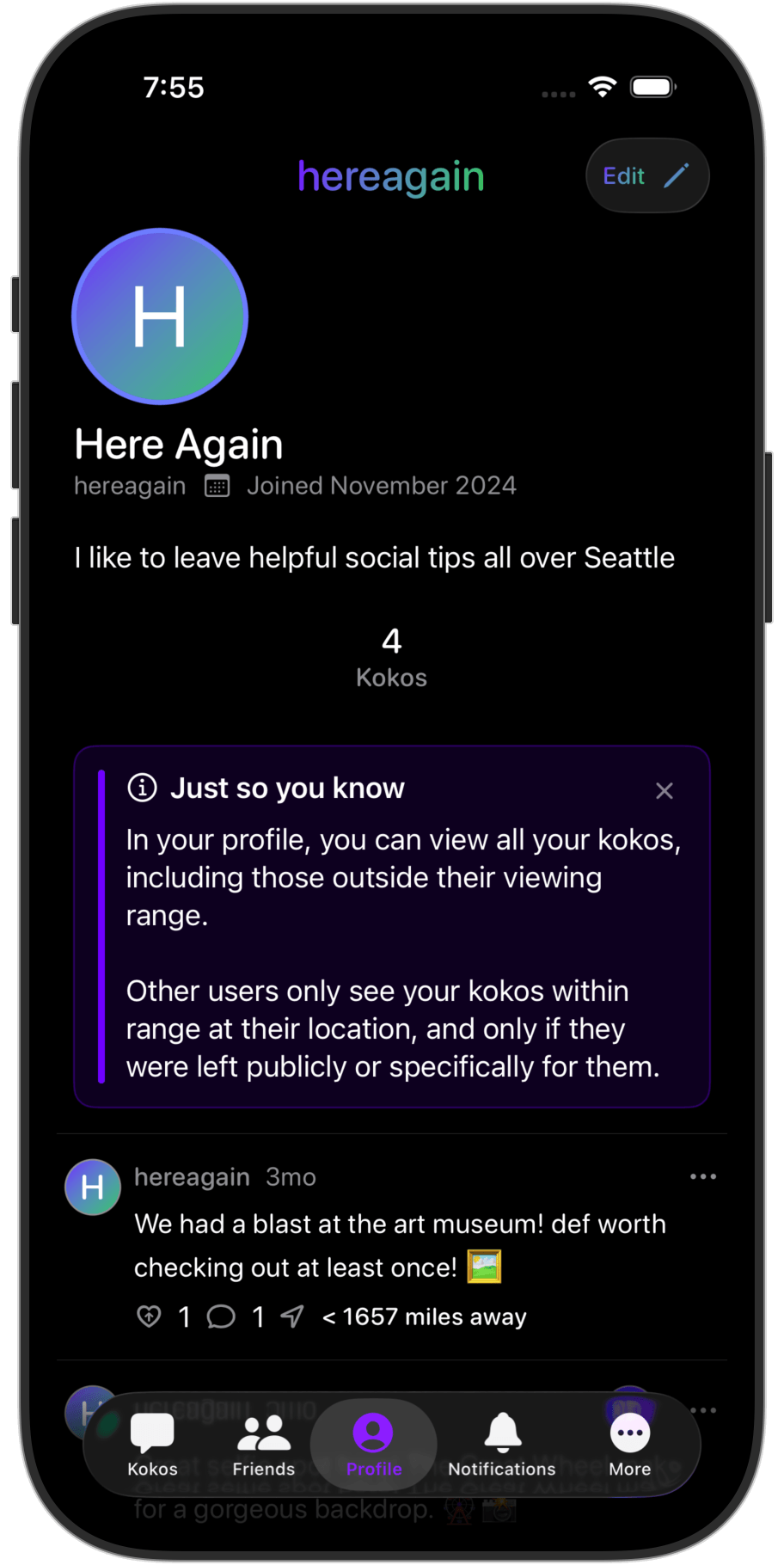
Your own kokos remain connected to the places where you created them, and you can revisit them later from your profile.
Even when you are no longer at the location, your own kokos can still serve as a record of messages, memories, and reminders tied to where they happened.
This is useful for remembering places you want to return to, notes you left for yourself, or messages you created for other people.
Koko relies on location for nearby discovery and arrival-based behavior, but the app is not built around live location sharing.
Here are a few frequently asked questions we've heard.
Koko is designed around real presence. You leave a koko from the place where you are so the message stays tied to that location.
You may not be close enough yet, the koko may not be intended for you, or you may need to open the app at the location.
Arrival alerts depend on notification permission being enabled. If notifications are off, the koko may still appear when you open the app at the right place.
That depends on how you created it. A koko can be for yourself, for friends, or for anyone nearby.
Download Koko, enable the permissions you want, and leave your first place-based message.